 QuickByte
Download big files faster, and never start one over.
QuickByte is a free download manager for Windows. It fetches a file over up to 32 connections at once, takes downloads over from your browser, and carries on after a pause, a crash or a dropped connection.

Most download failures are silent. QuickByte looks for them.
A broken file rarely comes with an error message. These are the problems QuickByte checks for, and what it does about each one.
- The server says it can resume, but it can't
- QuickByte tests this with a real request before splitting a file. If the test fails, the file comes down over one connection instead of arriving damaged.
- The file changes while your download is paused
- Every resume checks the file's version on the server. If it's a new one, QuickByte starts again rather than joining old bytes to new.
- A connection drops
- A new one takes over its range. If the server won't allow that many at once, the range waits for a free slot and the download keeps going.
- The link expires overnight
- Paste a new link, or click the download again in your browser. Everything already on disk is kept.
- The drive fills up at the very end
- Free space is checked before the first byte. On the same drive, the final merge needs room for little more than the file itself.
- The file isn't the one you expected
- Paste the checksum from the download page. If the finished file doesn't match, the download fails and won't open from a "complete" window.
See what every connection is doing
Each download has its own window with live progress for each connection. Right-click one to pause, resume or restart it while the others keep going.
Limit speed per download, per queue or overall, and change it while the file is transferring. The window's taskbar button shows progress too.

Leave it running overnight
Put downloads in a queue, then choose the days, a start and stop time, how many run at once and how fast they can go. QuickByte doesn't have to be open.
A queue can wake your computer to start, then sleep or shut it down when the last file is done. You get a countdown first, with Cancel as the default.

Save videos in the quality you want
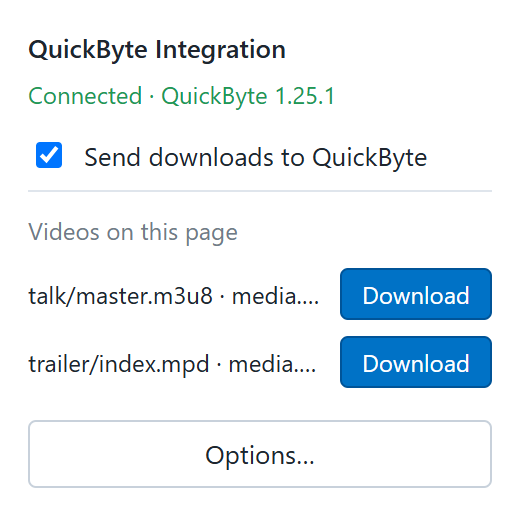
Give QuickByte an HLS or DASH video and it lists the available qualities. The extension spots the videos on a page, so you often don't need to find the link yourself.
When sound comes separately, it's saved as a second file beside the video. Live streams and DRM-protected videos aren't supported, and QuickByte says so before adding them.

Take over from your browser
The extension for Chrome, Edge and Firefox sends your downloads to QuickByte, along with the cookies the browser would have used. That's what makes links work on sites you're signed in to.
It talks only to QuickByte on your own computer. It isn't in the browser stores yet, so for now you load it by hand.
Script it from a prompt
qb controls the running app, so a batch file or scheduled task can add and manage downloads. Add --json for output that other tools can read.
qb add https://example.com/big.iso
qb add URL1 URL2 --queue Night
qb add URL -o D:\Isos -c 16
qb add URL/master.m3u8 --quality 720p
qb list --status active
qb pause 3f9c
qb queue start Night
Also included
- HTTP, HTTPS, FTP and FTPS, all split the same way
- Proxies: your Windows settings, HTTP, SOCKS5 or SOCKS4
- Sign-in to servers that use Basic, Digest or Windows authentication
- Batch downloads: paste a page, or a pattern like
photo[001-250].jpg - Clipboard watching: copy a link and get offered the download. Off by default
- Folders by file type: videos in one place, installers in another
- Custom User-Agent for servers that turn away download managers
- Search your download list as you type
- Light and dark themes that can follow Windows
- Internet zone marking, so Windows treats finished files as it would a browser download
Get QuickByte for Windows
- Install the .NET 8 Desktop Runtime QuickByte runs on it and the installer doesn't include it. Get the x64 version from Microsoft.
- Run the QuickByte installer The installer isn't code-signed yet, so Windows SmartScreen may warn you. Choose More info, then Run anyway.
- Add the browser extension, if you want it Follow the steps on GitHub, then pair it using the token in Options > Browser.
- Works on
- Windows 10 and 11, 64-bit
- Size
- 2.7 MB
- Released
- 31 October 2026
- SHA-256
1ecaa2de4b611f0c8d2e0ecac2451bc97665923b41ef14a551201a1fc0d00af8
To check your copy, run Get-FileHash QuickByte-1.25.1-x64.exe in PowerShell.